Sunday, 19 June 2016

I'm Feeling Lucky Easter Eggs on Google

  No comments
22:26

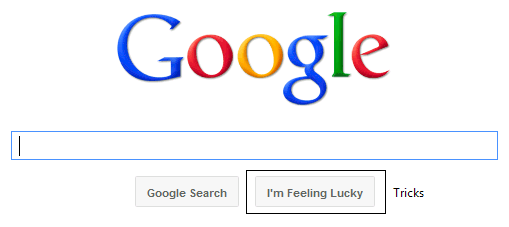
Although Google feels the I'm feeling lucky button is not 'as useful', it can still be used to try some excellent 3rd party Easter eggs that are a direct result of Google bombing (remember miserable failure and the whole George Bush case?).

While I have already written about some of these, I missed some immensely popular ones. So, this is a roundup article of all those funny "first results" I did not include in the 
previous article. Before starting this list, I would advise you to disable Instant from your Google preferences. To get the most out of this article, go to Google's homepage, type in these phrases and hit the I'm Feeling Lucky button.

I'm feeling lucky Easter eggs on Google
Google Loco
Type Google Loco in the Search box, hit the I'm feeling lucky button and you will be taken to a Google homepage where each letter of the Google logo will continuously dance. Also, the search button and the I'm feeling lucky lucky button are written in the incomprehensible Wingdings font. What you type in the search box also appears in the same font. Even the search box changes its colour every time you type a letter.
Google Pacman

Google I'm feeling lucky Easter eggs
Not a Google bomb but an immensely popular doodle which Google used on its homepage on the 30th anniversary of Pacman, the arcade game in May 2010. Just type Google Pacman in the search box, hit the I'm feeling lucky button and you will be taken to the Google Pacman page. You can use your arrow keys to start playing the game. To play in 2 player mode, hit the Insert Coin button. W, S, A and D keys will control the second player.
 Google Guitar (Les Paul Doodle)
Another very popular doodle which Google featured on its homepage to mark the 96th birthday of Les Paul. This flash and JavaScript based doodle allows users to not only play tunes by holding down the guitar and twanging its strings but also to record them. It also gives a link to share the recorded tunes with your friends. Just use the Google Guitar phrase or directly head over to Google Guitar.
Google Hacker

I'm feeling lucky
Ever wondered what Google would look like if it was hacked? Google Hacker can give you an idea of such a scenario. Just use the Google Hacker phrase and you will be taken to a Google homepage entirely in the leet language ( the language supposed to be used by hackers), where Normal Search is n0rM4L s34rCh, and the I'm feeling lucky button is "Eye Am ph33|1n6 |u(ky." This is an official Easter egg by one of those crazy Google engineers.
Google Weenie
Do you get angry at websites with extremely small fonts? Google weenie will definitely make you angry then. Type this phrase in the Google Search box and you will be taken to a Google homepage where everything decreases in size until it becomes a bit too small to read. This website is the exact opposite of Epic Google where everything grows in size.
Google Magic

I'm feeling lucky Easter eggs on Google
Do you like magic? Here's a trick to impress your friends with. Type in Google Magic in the Google search box and hit the I'm feeling lucky button and you will be taken to a special Google homepage. On this page, cover the two O's in the Google Logo with your hand and click anywhere on the page. Wait for sometime (5 seconds). You can say some magic words to add effect. Remove your hand and you will be surprised to see that the two O's have disappeared. Again cover the two O's and click anywhere on the page. Again wait for 5 seconds and the O's will magically reappear. A third click however will take you to the actual Google homepage.
Search Google in different colors
Are you bored of Google's default color scheme and want to try something different? Then search Google in different colors. Just use the word Google followed by your color and hit the I'm feeling lucky button and you will be taken to a Google homepage in that paricluar color. (e.g: Google Pink, Google blue etc.)
Some more I'm feeling lucky fun
In order to allow you to fully enjoy the surprise, the following keywords haven't been provided a detailed description. Just type them in the search bar and hit the I'm feeling lucky button, or alternatively click on the first search result.
Google Flight SimulatorGoogle GothicGoglogoGoogle Reverse
Google PiglatinGoogle GodEwmew FuddGoogle Bork
Pigeon RankGoogle KlingonGoogle ChurchThe Google Book
Mental PlexGoogle GulpGoogle TiSPCADIE
gDay with MATETranslate for AnimalsGoogle PondG.C.H.E.E.S.E.
Funny Google"Googlo"Google Blackle
Google Variations

Read More

Google - I'm Feeling Lucky Tricks & Jokes

  No comments
22:24

Google is the search engine of choice for most users. This is well represented by the fact that Google averages one billion unique visitors every month. A reason for this popularity is Google's characteristic to integrate simplicity with usability.

Another major reason for this popularity is Google's minimalistic homepage, which consists of a search bar and two buttons, Search and I'm Feeling Lucky. We all know what the search button does, it takes us to a search results page consisting of top ten results that match our query. The "I'm Feeling Lucky" button on the other hand takes you to the top ranking page in the search results for a particular query.

Im feeling lucky

Some webpages use this behavior to create some amazing and funny results. Here is a list of few such keywords that have some funny websites at the first position in Google. To use these tricks, open
Google's homepage, type in the phrase and hit the I'm feeling lucky button. To use the I'm feeling lucky button, you have to disable Google Instant.
Google Gravity
I am feeling lucky, Google
The force of gravity is non-existent in cyber space. Google gravity makes you realize how Google would have been if gravity had been effective on the internet as well. Just type Google gravity in the search bar and press the I'm feeling lucky button. This will take you to the Google gravity page which, at first look, might appear to be the Google homepage itself. Wait for a few seconds and you will realize why this Chrome experiment is called Google gravity. Although the website lists it as a Chrome experiment, it works on Mozilla Firefox as well, although it does not work on IE8 and previous versions of IE.
Google Sphere
Want to see images on Google dance in circular motion? Google sphere is the phrase for that. This phrase will take you to the Google sphere Chrome experiment. Google sphere is a modified version of Image search that adds a bit of fun to your regular search. This Chrome experiment, just like the previous one, works on Chrome, Firefox and IE9.
Epic Google 
Epic Google will take you to a growing version of Google that will continue to increase in size until it becomes too large to read.
I'm feeling lucky tricks
Enable Pirate language in Google
Remember the Facebook Pirate language trick? Google too has their own pirate version to compete with that of Facebook's. Just use the Google Pirate phrase or directly head over to Google Pirate.
Google Rainbow
This phrase will take you to a Google search homepage in which each element changes its color rapidly to create the rainbow effect. The search result page obtained for queries is very annoying too as it contains a very loud color combination of red, blue and green.
Annoying Google
Want to get annoyed while searching on Google? This one is for you. This phrase will take you to a Google search homepage with each word having alternate capital and small letters making everything a bit too hard to read.
2204355
Are you already familiar with the age old internet prank called rick-rolling and want to discover something new? Chicken rolling is for you. Try this new way of trapping unsuspecting internet users by typing the code 2204355 in the Google search box and hitting the "Lucky button."
LOL Limewire
Type in LOL Limewire in Google and you will be taken to a .swf file claiming that you are a pirate and telling you to "do what you want cause a pirate is free." Funny!
Google funny feeling lucky tricks
Find Chuck Norris
This one is for all fans of Chuck Norris jokes. We all know that you don't find Chuck Norris, he finds you. The find Chuck Norris phrase proves the fact further.
Who is the cutest?
Want to know who is the cutest person in the world? Just use this phrase. This one will definitely make you smile.

Most of these websites are not owned by Google. They were created independently to achieve these effects.

If you like it please share

Read More

Tips to Keep Your Android Mobile Phone Safe

  No comments
17:44

With the amount of information we keep on our smartphones, it's increasingly vital that we protect them and the data they house. I don't want to sound like a fear-monger, but the fact is your phone can be lost or stolen, it can be destroyed, or its contents can be hacked via malware. Here are a few basic and advanced tips to consider to protect everything from your work files to contact information.
The Basics: Keep Your Phone Locked
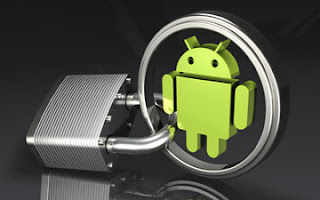
It's extremely easy and effective to lock down access to your Android phone using built-in tools. Simply tap your way to the "Location and Security" setting. There you can create either a standard password or a screen lock pattern. If you use the screen lock pattern tool, be sure not to make an extremely easy and obvious pattern.

Android Mobiles Security Tips

For Added Security: Hidden Lock adds an extra layer of security that is easy to implement but hard for would-be thieves to crack. After you have unlocked your phone using a password, Hidden Locks requires you to tap a hidden button before you can use the phone.Avoiding Malicious Apps
Viruses and other malware are increasingly targeting the Android platform, so it's important to take a few precautions to avoid infecting your own phone or tablet.

For the ultimate in security, I recommend only downloading apps from the official
Google Play store, where they have been vetted. Scammers have been known to create fake versions of popular apps, which are loaded with malware and only available at third-party websites.

However, some apps may simply not be available on the app store. If you see an intriguing app, you can verify its reputation by searching for it on Google and seeing if it has been written about, positively or negatively. Be wary of totally obscure apps.
Note App Permissions
Take the time to learn what permissions an app wishes to access, from making phone calls to using your system tools. While it makes sense that a social networking app may wish to access your contacts, it doesn't make sense that a "dancing dog" app would. Be wary when apps ask for more than seems to make sense.Consider an Anti-Virus
Finally, you can consider an anti-virus program for Android. Savvy users may not need these programs, but apps like Lookout Security & Antivirus do offer powerful features for added protection.Find Your Lost Phone and Erase Data Remotely
Thanks to GPS and wireless Internet, you can locate a missing Android phone using one of the several apps available. I recommend Android Lost (free). Even with your speakers turned off, you can use this app to play a sound, which is handy when you simply lose the phone in your house. Furthermore, this app also enables you to erase all the phone's data, saving your contact information and files from prying eyes.

You can also take pictures from your camera to know who is using your phone. And better yet: This app can be
installed remotely, so you can install it after you have lost your phone. (However, I strongly recommend installing it right away.)And Don't Forget Physical Mishaps
All the security measures in the world won't matter if your phone breaks from a simple drop. Be sure to invest in a quality case.

If you like it please share.

Read More

Increase Battery Life on Android Mobile Phones

  No comments
17:42

Anyone who has a smartphone knows that battery life is an issue. At the moment, the smartphone industry tends to favor performance over battery life when developing specifications for their new devices. To be perfectly honest, I am all for this. I would argue that it's better to have a zippy phone that acts quickly when I need it to rather than a slow, less sleek device that can withstand a few days of use without charging.

This is probably because I've mastered getting what I need from my phone while using the smallest amount of battery resources possible. Getting the best battery life from your phone can be somewhat complicated because everyone has a different opinion on what you should use and which (if any) features you should sacrifice to conserve battery. Fortunately, I have a simple method that works for every Android phone I've ever encountered.

Increase Android Battery Life

Display Screen

As a universal fact across all phones, the biggest drain on your battery is your display screen. Personally, I've found the auto-brightness control to work extremely well. To adjust to auto-brightness, go to 
Settings
àDisplay settingsàBrightness, and then just check Automatic brightness. It dims the brightness when you're in darker rooms (as it doesn't need to compete against other light sources and glare), but will really up the brightness if you're outside so that your phone is actually usable. However, if I'm really trying to conserve battery, I will turn off auto-brightness and set the brightness to very low (around 25%).

Also, be sure that you don't have an extremely long timeout (inactivity time before your screen automatically shuts off) as this will drain your battery. I personally just prefer shutting the screen off manually by pressing the power button rather than waiting for a timeout; this way my phone won't timeout on me when I am just reading something on it.
Live Wallpapers
Live wallpapers have a considerable impact on your battery life. Not using them is always a good idea if you want the best time from your battery.Close Unnecessary Applications
If your phone has some applications running that you are not currently using, you should close them from the Task manager to avoid putting unwanted pressure on your phone which in turn will cause your battery to drain quickly.Reduce Volume of speakers
Lowering volume of your phone's speakers can also have noticeable improvements in your phone's battery life.The Power Control Widget

If you have a fairly recent phone (anything running Android 2.1 or higher), you are already blessed with a completely awesome "Power control" widget. If your phone does not have this widget, you could always download one from the Play store. This is a must for your home-screen. With this widget, you can enable and disable WiFi, Bluetooth, GPS, and Auto-sync in addition to adjusting brightness levels between auto, low, medium, and high.

The only thing this widget left me wanting was the ability to enable and disable mobile wireless networks(3G and/or 4G network). Some phones allow you to do this by pulling down the "status bar" at the top of your phone (where notifications, battery life, and signal are) and selecting or unselecting "Mobile data." Other phones allow you to control mobile wireless networks by holding down the power button. Worst case scenario, you can adjust it in "Settings."

Now, when to enable and disable these features, all boils down to preference. I only use Bluetooth, WiFi, and GPS as I need it; otherwise it's off. If you have a WiFi connection available, it's generally better for your battery to use it rather than using your mobile wireless network (especially if you get poor signal for your mobile wireless).

If you like it please share.

Read More

Wirelessly Transfer Files on Android Devices With Dropbox

  No comments
17:41

As great as smart phones have become when it comes to handling our digital lives, there are still a few tiresome concessions we make for their use. One is having to plug our device into our computer in order to transfer files. Some manufacturers such as Apple have launched new services to alleviate that using cloud computing. Here is one way you can send files to your Android based phone completely free without the help of a USB cable.

Transfer files android wireless
Transferring files wirelessly on Android using Dropbox is easy

Step 1: On your computer, navigate to dropbox.com and download the application installer.Step 2: Once the application has been downloaded, run it and an initial set up wizard should begin. Step 3: Using the initial set up wizard, create a Dropbox account by entering your name, email address and computer name.Step 4: A folder called Dropbox should now be available on your computer. Put any file you wish to wirelessly send to your phone in this folder.Step 5: On your Android phone, open your App drawer and open the Market application.Step 6: Search for Dropbox and install the application.Step 7: Once installed, return home and re-open your App drawer and start up the Dropbox app.  

Step 8: Tap the existing Dropbox account button and log in using the account you just created in step 3.

You should now see any files you have in the Dropbox folder. Transferring additional files to your phone wirelessly is now as easy as dragging them into the folder and starting the app on your phone. Dropbox allows you to send up to 2GBs of data for free. Any files larger than that will either have to be transferred via hard connection or you’ll have to sign up for a 50 or 100 GB plan.

If you like it please share.

Read More

Staying Safe On Your iPhone

  No comments
17:17

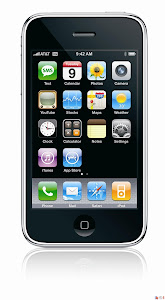
By now, it is certainly safe to say that Apple has gained a wider following than just the young, tech-savvy demographic that initially seemed to flock to Mac products. While Mac computers (and specifically the MacBook Pro) have steadily arisen in popularity, the brand’s move to household name is built largely on their fleet of iOS products, and specifically the iPhone. Apple boasts intuitive-yet-sophisticated software as at least one reason that users from a broad range of demographics are drawn to their products.
Stay Safe of iPhone

Most users will find the transition into using an iPhone fairly smooth and will have very few problems with the basic usability of their phone even without much research or practice. While this is definitely a good thing, many users tend to settle into a rut, using only the basic functions of the device and failing to capitalize on additional features. In many cases, this simply means less entertainment so it might not be a big concern. In others, however, it might mean less
security and that should definitely be a concern. The iPhone has several security features enabled by default but users (particularly those new to iOS products) should at least be aware of a few additional safety features.

1. Auto-lock and Passcode

The iPhone is set by default to Auto-Lock after 1 minute without use but this setting can be disabled (Settings > General > Auto-Lock) or set to auto-lock after 2, 3, 4 or 5 minutes. When combined with the Passcode Lock setting, Auto-lock is a simple, yet effective, safety feature. When Passcode Lock is activated (Settings > General > Passcode Lock), it requires that a 4-digit code be entered before the phone is unlocked. Enabling both of these settings will prevent unauthorized activity on your phone (be it your 2 year old son or a stranger that has found your lost phone).

2. Wi-Fi Settings

One of the big advantages of an iPhone (or any Smartphone) is Wi-Fi support. This advantage can also be a potential risk because it opens up the possibility that hackers access your phone data via the web. One simple precaution can be taken by enabling the Ask to Join Networks feature (Settings > Wi-Fi > Ask to Join Networks). When this feature is enabled, an alert will pop up before automatically joining any new or unknown Wi-Fi network. This feature gives you the ability to only join networks you trust.

3. Device Usage Restrictions

The iPhone now allows users to enable specific usage restrictions (Settings > General > Restrictions). This setting allows you to block the use of certain features such as Safari, YouTube, or the Camera. It also allows you to block music and video content based on various rating systems. Many users with children take advantage of these settings but it is also a good way to avoid viewing or hearing explicit content unintentionally.

If you like it please share.

Read More

How to Secure a Wireless Wi-Fi Network

  No comments
17:15

With the world going wireless in every sphere of technology, the question of security has often been raised. The same is true for wireless internet networks or Wi-Fi networks with hackers and Wi-Fi intruders always looking for ways to gain access to unsecured networks. There are several reasons why you might want to protect your Wi-Fi network. Prominent among them include better privacy, reduced internet bills and faster internet speeds.This post contains few simple techniques you can use to make sure that your wireless network is as secure as it possible can be.

Protect your Wireless Internet Network

1) Encrypt your Wi-Fi Network: When you use a Wi-Fi network for accessing the internet, every piece of data you send and receive over the air can be easily snooped by anyone with the right set of tools. Packet sniffers can be used by even the most novice of users to sniff your data. This means that a hacker can not only see which websites are you accessing but also get the login details of your personal and professional accounts.

Encryption basically involves scrambling the data that is transmitted and received by you while using a wireless network. This means that even if a hacker intercepts your data transmission, (s)he will not be able to exploit the information contained within it.

Protect WiFi Internet Network

There are two encryption standards available that you can use:
WEP (Wired Equivalent Privacy) and WPA (Wireless Protected Access). WEP is the older standard of encryption and can now be bypassed in a matter of minutes. WPA is relatively newer but it still has security holes. AirCrack and coWPAtty are two free tools that allow anyone to easily crack WEP and WPA encryption using bruteforce technique. WPA2 is the latest standard and is what you must use if you want the highest level of protection for your wireless network. The encryption keys used change each time a device accesses the network making WPA more difficult to hack.

The encryption used by all devices in the network must be the same for the network to work properly. Your network
will only be as secure as its least secure device. Make sure all devices you use support WPA2 encryption. Use a strong encryption key. Make sure that it is longer than 10 characters and contains a mixture of capital and small letters, numbers and symbols. Do not use common words and stuff that people can guess about you as your password.

2)
Replace default passwords on your router with strong passwords: The biggest mistake most wireless internet users make is not changing default passwords on their routers. Hackers utilize public databases that contain default passwords and usernames from virtually every manufacturer. This enables them to change the security settings of your router according to their needs. Using a strong password for your router ensures that hackers and miscreants cannot change your network's security settings. To change the password on your router, visit Administration settings on your router's settings page. Also, do not store passwords in browsers as they can be easily made visible.

3)
Change default SSID
Your network's SSID or Service Set Identifier is the name of your wireless network. Usually, the SSID is the name of the router's manufacturer along with the model number of the router. Changing it to not display this information prevents you from giving additional information about your router to prospective hackers.

4)
Do not broadcast your SSID
Hiding SSID prevents unsophisticated and inexperienced hackers and wifi intruders from determining that your network exists. Hiding your SSID is relatively easy and the option to do so is usually under basic wireless settings on your router's settings page. However, it is important to note that some devices, including those running newer versions of Windows, will show every network even if they cannot identify its name. Moreover, your network will still contain the SSID in data packets making unmasking ridiculously easy with tools like inSSIDer, Kismet and Commview for WiFi.

5)
Use scary names to discourage Wi-Fi theft: If your wireless network has a name like C:\virus.exe, most people who might otherwise access your network will not for the fear of getting their devices infected. You can use your creativity to find more dangerous names for your wireless network.

6)
See Connected Devices List: Almost every new router will have a page which displays the list of every device that is connected to the network. You should check this page at regular intervals to see that unknown devices are not leeching your network. When you see an unknown device, you can be certain that someone has breached your network. You can try AirSnare, a free utility which scans your network for unexpected MAC addresses and also looks into DHCP requests.
Secure Wireless Network

7)
Turn off Guest networking: While most routers will have guest networking disabled by default, it always pays to see that you may not have accidentally enabled it. Guest networking allows others to access your network.

8)
Enable MAC address based filtering: Media Access Control or MAC address identifies each device connected to your network. MAC address is an alphanumeric key separated by colons. Enabling MAC address based filtering allows only devices having particular MAC addresses to access your network. You need to enter the MAC address of every device you wish to allow to connect to your network on your router's settings page. This prevents unknown devices from connecting to your network even if they know your password. To find the MAC address of your computer, open command prompt and execute “ipconfig /all” without quotes.

While it may prevent inexperienced users from getting access to your network, experienced hackers and advanced users can use a wireless network analyzer like
Nmap and then change the MAC address of his computer with another free tool MAC Shift.

9)
Keep your firmware up to date: Router vendors regularly release firmware updates and post them on their websites. You should occasionally check the manufacturer's website to see if a new firmware update has been released. Newer routers will automatically inform you when new firmware is available.

10)
Reduce wireless signal range: If you reduce the range of your wireless network, common sense tells that it will prevent hackers located at a distance from detecting your network. This has the advantage that if hackers do not know that a wireless network exists, they will not try to break into it. You can place your router at places which would block the Wi-Fi signals. While this technique is advantageous, a hacker keen on hacking into your network will just have to use a larger antenna to pick up your router's signals. Moreover, reducing the range of your wireless network might cause troubles for genuine users.

11)
When not using your internet network, turn it off: This is self explanatory. If you are not using your network, turning it off saves you from giving extra time to hackers to try and hack into your wireless network. While it may be impractical to turn off your network every time you are not using it, it still is advisable to do so during extended periods of non use.

If you follow all these techniques, your Wi-Fi network will be a lot more protected and hackers will have a tough time breaking into it.


If you like it please share.

Read More