Showing posts with label ANDROID. Show all posts

Sunday, 19 June 2016

Tips to Keep Your Android Mobile Phone Safe

  No comments
17:44

With the amount of information we keep on our smartphones, it's increasingly vital that we protect them and the data they house. I don't want to sound like a fear-monger, but the fact is your phone can be lost or stolen, it can be destroyed, or its contents can be hacked via malware. Here are a few basic and advanced tips to consider to protect everything from your work files to contact information.
The Basics: Keep Your Phone Locked
It's extremely easy and effective to lock down access to your Android phone using built-in tools. Simply tap your way to the "Location and Security" setting. There you can create either a standard password or a screen lock pattern. If you use the screen lock pattern tool, be sure not to make an extremely easy and obvious pattern.
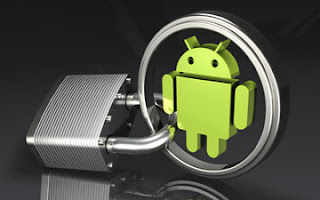
Android Mobiles Security Tips

For Added Security: Hidden Lock adds an extra layer of security that is easy to implement but hard for would-be thieves to crack. After you have unlocked your phone using a password, Hidden Locks requires you to tap a hidden button before you can use the phone.Avoiding Malicious Apps
Viruses and other malware are increasingly targeting the Android platform, so it's important to take a few precautions to avoid infecting your own phone or tablet.

For the ultimate in security, I recommend only downloading apps from the official
Google Play store, where they have been vetted. Scammers have been known to create fake versions of popular apps, which are loaded with malware and only available at third-party websites.

However, some apps may simply not be available on the app store. If you see an intriguing app, you can verify its reputation by searching for it on Google and seeing if it has been written about, positively or negatively. Be wary of totally obscure apps.
Note App Permissions
Take the time to learn what permissions an app wishes to access, from making phone calls to using your system tools. While it makes sense that a social networking app may wish to access your contacts, it doesn't make sense that a "dancing dog" app would. Be wary when apps ask for more than seems to make sense.Consider an Anti-Virus
Finally, you can consider an anti-virus program for Android. Savvy users may not need these programs, but apps like Lookout Security & Antivirus do offer powerful features for added protection.Find Your Lost Phone and Erase Data Remotely
Thanks to GPS and wireless Internet, you can locate a missing Android phone using one of the several apps available. I recommend Android Lost (free). Even with your speakers turned off, you can use this app to play a sound, which is handy when you simply lose the phone in your house. Furthermore, this app also enables you to erase all the phone's data, saving your contact information and files from prying eyes.

You can also take pictures from your camera to know who is using your phone. And better yet: This app can be
installed remotely, so you can install it after you have lost your phone. (However, I strongly recommend installing it right away.)And Don't Forget Physical Mishaps
All the security measures in the world won't matter if your phone breaks from a simple drop. Be sure to invest in a quality case.

If you like it please share.

Read More

Increase Battery Life on Android Mobile Phones

  No comments
17:42

Anyone who has a smartphone knows that battery life is an issue. At the moment, the smartphone industry tends to favor performance over battery life when developing specifications for their new devices. To be perfectly honest, I am all for this. I would argue that it's better to have a zippy phone that acts quickly when I need it to rather than a slow, less sleek device that can withstand a few days of use without charging.

This is probably because I've mastered getting what I need from my phone while using the smallest amount of battery resources possible. Getting the best battery life from your phone can be somewhat complicated because everyone has a different opinion on what you should use and which (if any) features you should sacrifice to conserve battery. Fortunately, I have a simple method that works for every Android phone I've ever encountered.

Increase Android Battery Life

Display Screen

As a universal fact across all phones, the biggest drain on your battery is your display screen. Personally, I've found the auto-brightness control to work extremely well. To adjust to auto-brightness, go to 
Settings
àDisplay settingsàBrightness, and then just check Automatic brightness. It dims the brightness when you're in darker rooms (as it doesn't need to compete against other light sources and glare), but will really up the brightness if you're outside so that your phone is actually usable. However, if I'm really trying to conserve battery, I will turn off auto-brightness and set the brightness to very low (around 25%).

Also, be sure that you don't have an extremely long timeout (inactivity time before your screen automatically shuts off) as this will drain your battery. I personally just prefer shutting the screen off manually by pressing the power button rather than waiting for a timeout; this way my phone won't timeout on me when I am just reading something on it.
Live Wallpapers
Live wallpapers have a considerable impact on your battery life. Not using them is always a good idea if you want the best time from your battery.Close Unnecessary Applications
If your phone has some applications running that you are not currently using, you should close them from the Task manager to avoid putting unwanted pressure on your phone which in turn will cause your battery to drain quickly.Reduce Volume of speakers
Lowering volume of your phone's speakers can also have noticeable improvements in your phone's battery life.The Power Control Widget

If you have a fairly recent phone (anything running Android 2.1 or higher), you are already blessed with a completely awesome "Power control" widget. If your phone does not have this widget, you could always download one from the Play store. This is a must for your home-screen. With this widget, you can enable and disable WiFi, Bluetooth, GPS, and Auto-sync in addition to adjusting brightness levels between auto, low, medium, and high.

The only thing this widget left me wanting was the ability to enable and disable mobile wireless networks(3G and/or 4G network). Some phones allow you to do this by pulling down the "status bar" at the top of your phone (where notifications, battery life, and signal are) and selecting or unselecting "Mobile data." Other phones allow you to control mobile wireless networks by holding down the power button. Worst case scenario, you can adjust it in "Settings."

Now, when to enable and disable these features, all boils down to preference. I only use Bluetooth, WiFi, and GPS as I need it; otherwise it's off. If you have a WiFi connection available, it's generally better for your battery to use it rather than using your mobile wireless network (especially if you get poor signal for your mobile wireless).

If you like it please share.

Read More

Wirelessly Transfer Files on Android Devices With Dropbox

  No comments
17:41

As great as smart phones have become when it comes to handling our digital lives, there are still a few tiresome concessions we make for their use. One is having to plug our device into our computer in order to transfer files. Some manufacturers such as Apple have launched new services to alleviate that using cloud computing. Here is one way you can send files to your Android based phone completely free without the help of a USB cable.

Transfer files android wireless
Transferring files wirelessly on Android using Dropbox is easy

Step 1: On your computer, navigate to dropbox.com and download the application installer.Step 2: Once the application has been downloaded, run it and an initial set up wizard should begin. Step 3: Using the initial set up wizard, create a Dropbox account by entering your name, email address and computer name.Step 4: A folder called Dropbox should now be available on your computer. Put any file you wish to wirelessly send to your phone in this folder.Step 5: On your Android phone, open your App drawer and open the Market application.Step 6: Search for Dropbox and install the application.Step 7: Once installed, return home and re-open your App drawer and start up the Dropbox app.  

Step 8: Tap the existing Dropbox account button and log in using the account you just created in step 3.

You should now see any files you have in the Dropbox folder. Transferring additional files to your phone wirelessly is now as easy as dragging them into the folder and starting the app on your phone. Dropbox allows you to send up to 2GBs of data for free. Any files larger than that will either have to be transferred via hard connection or you’ll have to sign up for a 50 or 100 GB plan.

If you like it please share.

Read More