
Showing posts with label FACEBOOK. Show all posts

Monday, 20 June 2016

Cool Facebook Status, Chat Tricks and Tips

  No comments
19:30

Most of us use Facebook to interact with some of our long separated friends but that does not mean we cannot have fun on Facebook. Here is a collection of tricks, tips and Easter eggs you can use to enjoy your experience on Facebook.

Facebook Easter Eggs: Pirate Language ,Turn Facebook Upside Down

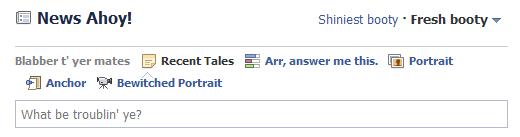
Facebook is not as famous for its Easter eggs as Microsoft, but that does not mean that Facebook's Easter eggs are not entertaining. The one which I especially find interesting is the Pirate Language trick. To enable Pirate Language in Facebook, login to Facebook, click on the down arrow at the right of the top navigation bar, click on Account Settings, click on Edit at the right of the Language option, and in the Primary Language dropdown menu, select English(Pirate) located somewhere near the bottom and be the captain of your Pirate Ship.
Facebook tricks
Blabber t' yer mates

Similarly, you can also turn
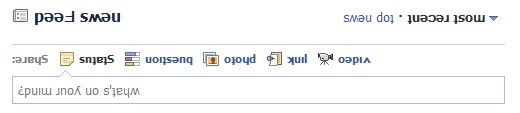
Facebook upside down by selecting English(Upside Down) from the Languages dropdown. This will flip the entire Facebook interface but your status updates would still be "normal".
Facebook Tips
See. Mark Zuckerberg does know how to headstand.


Chat on Facebook in your Firefox sidebar while browsing other Websites

To do this, you need to bookmark http://facebook.com/login.php. Then click on Show all Bookmarks (Manage Bookmarks in older versions) in the Bookmarks menu, then locate the newly created bookmark, single click on it, then click on more in the footer, then check Load this bookmark in Sidebar. Now, you can open that bookmark in Firefox's sidebar and keep on browsing other websites too.
Facebook chat

Show Facebook Status Updates only to Specific People or Hide them from someone

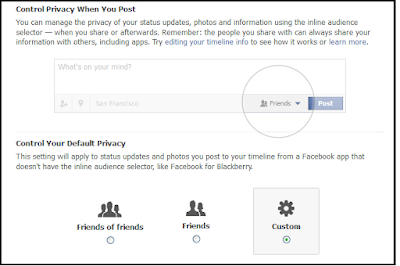
Facebook gives you the option to show your status updates to everyone or only your friends. You can further optimize Facebook so that your status updates are shown only to people you wish. Go to Privacy Settings by clicking the Settings icon at the right of the top navigation bar and clicking Privacy Settings. Then, in the Who can see my stuff? section, click on "Who can see your future posts?". Then, customize who you wish to show your posts by clicking on the down arrow that appears next to the Post button on the non-functional status update box. You can also hide your statuses from specific people by adding their name in the Hide from These section under Custom settings. You can also individually change the audience of your posts. Go to the post whose audience you wish to change and choose a different audience by clicking on the globe icon (which denotes that the post is public).
Hide Facebook Status

Hide your past posts so that only your friends can see them

Now you can also customize your past posts so that only your friends can see your past activity. To do this, open Facebook Privacy Settings and under the "Limit the Audience for Past Posts" option, select "Limit Old Posts."

Tag people in Status Updates, Wall Posts, Comments or Text

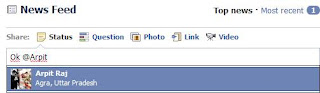
To tag someone in text in a manner that a link is created to the person's profile, use the @ symbol. eg. If you wish to tag John Jamison in your comment write @ John Jamison without any spelling mistake. If the person is in your friend list, a link in blue will be automatically created to the person's profile and he would be "tagged".
Tag Statuses Text Comments
Facebook text tagging in action

Write Upside Down, In Bubbles or Inverted Mirror-like text on Facebook

You might have seen many people update their Facebook status saying that "this was the last time they bought a keyboard on eBay" or "they have finally learnt how to update Facebook statuses while doing a headstand" written upside down. Here is how you too can flip text like that and add much more cool effects. Just go to Upside Down Text, uncheck Backwards effect, enter your text and copy the inverted one from the inverted text column and paste it in your status update or chats. You can also write inverted mirror like text by un-checking the upside down effect. To write in bubbles, click on the Bubble Ball text in the top Navigation bar.

e.g. Mirror Effect:- !rorrim a ni deppart ma I !oN hO

e.g. Upside Down Effect:- ɯɐp ʞǝʎqoɐɹp¡

e.g Both Mirror and Upside Down Effect:- ¡poפ ǝɯ dlǝH ˙ʎzɐɹɔ ƃuıʇʇǝƃ sı uıɐɹq ʎW

e.g. Text in Bubbles:- Ⓞⓗ Ⓝⓞ! Ⓜⓞⓡⓔ ⓑⓤⓑⓑⓛⓔⓢ


If you like it please share.

Read More

Why Facebook is Blue in Color?

  No comments
19:29

When you open Facebook, the first thing that you notice is the blue color it uses. Ever wondered why is Facebook so blue in color and not changing its color scheme?

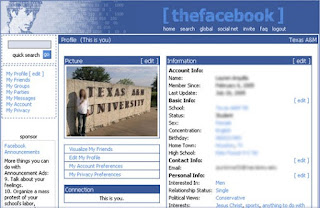
Ever since they started as 'thefacebook', Facebook has stayed with the blue color. Although major changes have been made in the Facebook theme since then, the major unchanged thing has been the blue color.

facebook blue color
Facebook from its early days when it was known as  thefacebook

An exciting fact: In its earlier days, thefacebook.com required you to have an  .edu email id to join.

Everywhere from its login page to Facebook groups, you find only blue.

facebook is blue
Facebook Login Page. All Blue!

The reason for this is that  Mark Zuckerberg, the young founder of Facebook is red-green color-blind and blue is the richest colour for him which he confirmed in an online interview with Leo Laporte.

Another important commercial factor for using blue color is the fact that most colors tend to distract the viewers. Blue on the other hand acts as a transparent background to the main content as visible to the human brain due to which most popular websites tend to use the blue color. It can easily be called a webmaster's favorite color. Blue color is also sometimes referred to as 'Nirvana' for the brain.

All these factors make blue a prominent color on Facebook.

If you are bored with Facebook's blue theme and want a stylish theme, visit
Change Facebook Theme.

If you like it please share.

Read More

Safety and Security Risks When Using Facebook

  No comments
19:26

There is no doubt that the biggest social networking site taking over the whole globe is Facebook. Since it’s the biggest thing the online world has ever seen for the last several years, it’s critical that you understand the guidelines and policies listed on the site. They’re very useful in keeping you informed with various aspects of the site and how it runs.

You should know by now that for every website that you go to, there’s always a good chance of encountering good and bad users.
Facebook can be accessed by just about anybody so it’s imperative that you are wise and conscious with how you distribute or share information about yourself on it (and other social networking sites for that matter).
Facebook Security Risks

Identity theft is one of the biggest concerns in the online world today. They are real and can devastate a person’s life if the person isn’t aware of what’s going on.

The internet is fun to be on nowadays since it helps you to keep in touch with your old and new friends, family and associates. You can share content such as pictures with anyone who has an internet connection, play games seamlessly through a virtual portal, being aware of announcements and updates of certain events and entertaining friend requests. Such things have prompted users to come back for more and what many aren’t aware of is the fact that they are vulnerable to online predators and criminals.

So what should you do to help protect yourself from the bad guys out there? Here are just some helpful things that can help you in the long run if you follow them religiously:
1. Understand how the security feature works on Facebook.
As you are well aware, Facebook is known for periodically modifying its security settings. You will observe posts from the site of the changes being made with regards to its security features that lets other users see content that you don’t want them to view. It’s critical that you look into this carefully and see if the changes can significantly affect you in some way.2. Don’t reveal too much information on Facebook.
One of the most obvious ways of getting in trouble within the biggest social networking site is by revealing too much information on just about everything (including yourself). You should be aware of the things that you’re sharing, be it your profile, wall posts, messages and even the content that you share such as pictures and videos. You’ll never know, criminals would use whatever it is you post for their own evil means.3. Pay attention to links, e-mails or friends
Social networking sites these can be penetrated by online criminals who use sites like Facebook to gain information about you. This can occur through a sent or posted link, which will in turn eject a virus or spyware to retrieve personal information about you. If you happen to receive a link that you find suspicious, ask your friends about it or simply delete it.

With the evolution of technology, cyber criminals are more smarter than ever. If you are constantly paying attention for any suspicious activity that comes your way, you can
shield yourself from identity theft and other online criminal acts.

Read More

Make Facebook Photos & Posts Private

  No comments
19:25

Do you have private pictures of yourself or your family on Facebook which you don't want the entire world to see? This guide will help you change your Facebook privacy settings to only allow your friends or people you know to see your Facebook photos (and everything else you do). You can even customize the privacy settings of individual albums to share them with a small group of people like your co-workers or relatives.

Make Facebook Photos & Posts Private
There are three ways in which you can do this. Either, you can customize each wall post's or photo's settings individually, or set the preferences for specific albums or use a general setting for all posts and photos you have.

1: Choosing an individual wall post's or photo's privacy settings

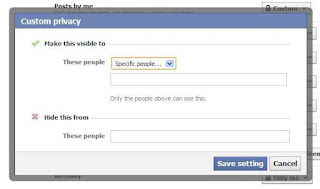
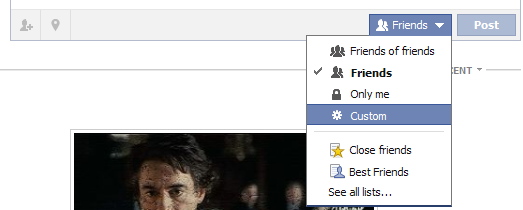
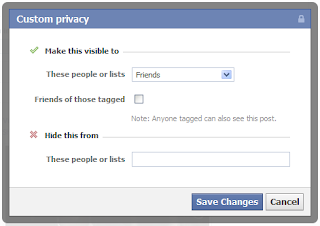
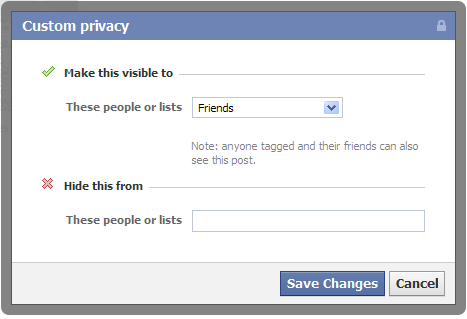
While posting your photo or post, click on the down arrow left to the post button. Select Custom from the drop-down menu. Using the pop-up, select who you wish to make a post visible to. You can select if you wish to show a post to friends, friends of friends or specific people or a specific list of people.
Make Facebook Photos Private
Select Custom Privacy Options
You can even hide a photo from specific people or a list of people. This will be especially useful in situations where you don't want your colleagues to see a certain picture that makes fun of them or something similar. Normally, when someone is tagged in a photo, every friend of that Facebook user gets to know about it. So, if you chose to make a photo visible to friends and someone is tagged in that picture, all their friends will see that image. To prevent this, uncheck the Friends of those tagged checkmark.
Facebook Pictures & Posts Private

2: Limiting the Audience for an entire album

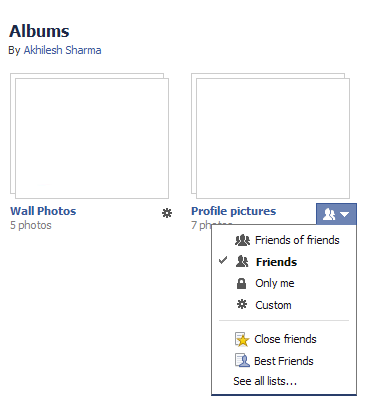
This is much similar to setting the audience for an individual picture. Just go to your albums, click on the Settings icon on the bottom right of the album whose privacy settings you wish to customize. Then select Custom from the drop down menu. The options Facebook offers are almost the same as those for an individual photo, however there is one difference.
Private Pictures Facebook Posts

All those people who are tagged and their friends would still be able to see the photos in your album. To prevent this, you will have to change the privacy settings of each individual photo.

Facebook photos & posts privacy settings

3: Making all your Photos and Posts Private

This is the permanent solution against worrying about your Facebook content. However, it doesn't offer much customization options and should only be used if you are sure how you will use Facebook. This is a 2 step process and involves customizing the audience for your past posts as well as those you will make in future.Step 1: Limiting Past Posts & Photos
Go to your Privacy Settings, and then go to "Limit the audience for posts you've shared with friends of friends or Public?." Then click on the "Limit Old Posts" button. In the pop-up, click Confirm. This is a permanent change and cannot be undone. However, all those tagged and their friends would still be able to see your posts. To prevent this, you will have to change each post's settings individually.Step 2: Limiting Future Posts and Photos

Facebook Content & Photos Private

While in the privacy center, click on "Who can see your future posts?" This will open a non-functional status update box. However, the privacy options that open when clicking on the down arrow right next to the post button are functional and act as global defaults for the content you post on Facebook in the future. Make sure to select friends if you only wish to share content with your friends. You can however, change this according to your needs; but for most people, friends would be the best option. You can further improve your privacy by selecting Custom and then unchecking the check box that appears next to "Friends of those tagged". This will customize your Facebook settings to show your Facebook activity only to your friends and those tagged.

You can also select who gets tagged in your content to further prevent your content from appearing in front of unwanted eyes. To do this, go to your Privacy Settings from the Settings icon located at the top right of the blue Facebook bar. Then, in Privacy Settings, click on Timeline and Tagging. Then under, "How can I manage tags people add and tagging suggestions?", select Enabled to
review tags that friends add to your posts.

Facebook's privacy settings take some time to adjust but once you are done, you will never have to worry about your content ending up in front of unwanted users.


If you like it please share.

Read More

Change Facebook Theme, Color & Appearance

  No comments
04:43

Facebook is a social networking site which enables people to connect with friends and people around. That's how Facebook is usually introduced. However, Facebook is beyond the need of being introduced as almost everyone is on it. Despite its popularity, Facebook has one flaw; the default blue theme is really boring.

Some even consider it an annoyance while visiting Facebook. As Facebook does not allow users to change its theme like MySpace used to, users are left with no other option but to bear the theme Facebook wants them to use.

However, it is relatively easy to change the
Facebook theme to a stylish one using an addon and custom themes which are available free of cost on the internet.

An example of the final outcome would be something like in the image.

Change Facebook Theme
This is the Ferrari theme. More themes are available for you to choose.


Requirement: The basic requirement for this to work is to have Mozilla Firefox or Google Chrome as your browser.
Steps to achieve this: If you use Google Chrome and Mozilla Firefox users should carry out the following steps to successfully change Facebook theme.
  1. Open Mozilla Firefox and install 'Stylish' addon.
  2. Follow the basic steps to install the addon.
  3. Restart Firefox after successfully installing the Stylish addon.
  4. Login to your Facebook Account and click on the small 'S' button in your Firefox status bar.
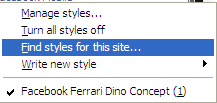
  5. Click on "Find Styles for this Site" to open a new tab with free themes to use for Facebook.
  6. Click on any theme and a preview will be shown.
  7. If everything is fine in the previewed theme, click on "Install with Stylish" button at the top right corner of the page.
  8. A dialog box will open.
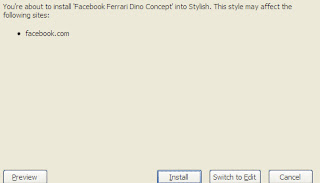
  9. Click on Install in the dialog box.

Steps for Google Chrome
  1. Install Stylish for Chrome from the Chrome Web Store.
  2. Navigate to Facebook.com and click on the S button.
  3. Click on "Find Styles for this Site" to open a new tab with free themes to use for Facebook.
  4. Click on any theme and a preview will be shown.
  5. If everything is fine in the previewed theme, click on "Install with Stylish" button at the top right corner of the page.

Stylish Button


facebook theme change

Install with stylish

Installing Ferrari theme for Stylish Firefox

Now whenever you open Facebook, it will show the theme that you have installed with Stylish instead of the boring old blue theme.
If you like it please share.

Read More

Sunday, 19 June 2016

How hackers hack Facebook Account & How to stop them?

  No comments
00:46

Facebook is, undoubtedly, the most popular social networking website with more than 500 million active users. Due to its popularity, many hackers (or should I say crackers?) are actively involved in hacking Facebook accounts of unsuspecting users. This article outlines the many strategies that such hackers use to gain access to Facebook accounts of hundreds of users each day and how you can stop them from hacking your account.

hack facebook account
Facebook is one of the prime target of hackers!

Email Address Hack

I have always been puzzled by Facebook's leniency in this matter. All a hacker needs to do is know your name and he will be conveniently shown your email address at your profile. How easily a hacker can then hack your Facebook account (and everything else associated with that email id) if he 'guesses' your password (if you use a weak password) or answers your security question! This is something I hope Facebook improves on quickly. Until Facebook does so, here are some tricks you can use to protect yourself from this vulnerability.How to safeguard your Email Address?
Just follow these steps:-
  1. Hide your Email Address from everyone by going to Edit Profile>Contact Information>Clicking on the icon beside your email address> checking 'Only Me'.
  2. Change your primary email address to a one that is only known to you by going to Account Settings>Email> and changing your primary email to the new one (known only to you) and removing your previous email address.
  3. For additional security, when in Account Settings, check 'Secure browsing' and 'Send me an email when a new computer or mobile device logs into this account' and click Save.

hack facebook
A hacker at work!

Phishing

Phishing is one of the easiest ways to trick users into giving out their login credentials. All a hacker does is setup a webpage similar in design to that of the Facebook homepage, attach a server sided script to track the username and password entered and store it in a log. Sending people emails stating that someone tagged a photo of them on Facebook in the same format as Facebook and giving a link below to the phishing website further reduces the chances of it being detected as a fake. Sometimes, spam Facebook apps, like those promising to tell who viewed your Facebook profile, automatically post links to phishing websites. A new trend amongst phishers is creating Facebook look-a-like widgets for stealing user's login credentials.How to prevent yourself from being phished?
At all costs, avoid clicking on suspicious links. Moreover, always check the URL in the address bar before signing in. Avoid logging in through various "Facebook widgets" offered by websites and blogs. Instead, use Facebook's homepage to sign in. Always try to use Safe Search while searching. If you do manage to get phished, report the website so that others may get a warning before visiting it.
hack facebook password

Keylogging through Keyloggers

Keylogger is a type of computer virus that tracks key strokes. Keyloggers can be installed remotely on a computer system by a cracker to record all the activity that is going on the victim's computer. Keylogging gets more easy if the hacker has physical access to the victim's computer.How to stop keyloggers?
Install a good antivirus and update it frequently. Do not click on suspicious links and avoid downloading illegal software. Also, avoid installing free toolbars and other such spam software. Always scan third-person's flash and pen drives before using them on your computer.

Some more basic tips can be found here:
PC Security tips to make computer secure

Social Engineering

Social engineering involves using any trick to fool the user into making himself vulnerable to exploits. This could involve anything from sending spoof emails, pretending to be from Facebook, telling you to change your password to 12345678 to a hacker maliciously getting out the answer to your security question in a friendly chat or discussion.How to prevent yourself from being socially engineered?
Stay aware during chats and discussions. Use a tough security question, preferably one whose answer you would never disclose to anyone. Moreover, Facebook, or any other company for that matter, will never ask you to change your password to 12345678 or do something as silly as asking you to send out your login details to prove that you are an active user. Always think before taking actions and your e-life on Facebook will be safe from hackers looking to hack Facebook accounts.

If you like it please share.

Read More

Saturday, 18 June 2016

Download Facebook Account's Pictures and Data

  No comments
18:07

OK. So you are an active Facebook User. Imagine, just imagine, some grieved enemy of your reports your posts, and Facebook ends up deleting your account. How would you feel?
Ruined?

Well, not now. Facebook, the most popular social networking site, has a ways to tackle this situation. It does so by allowing you to download all your account information at the click of a button.

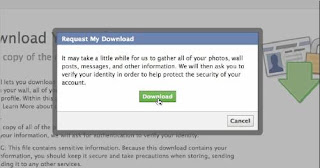
While this has been requested by users for years now, Facebook has very recently introduced the feature of downloading your Facebook account. The download is in the form of a zip file containing all your profile pictures, the photos you have been tagged in, wall posts and videos. Your messages, friend list, photos, events, likes (and almost everything you have ever uploaded on Facebook) is also included in the downloaded zip file. Upon unzipping the downloaded zip file, you will find a simple HTML file of your profile with offline links to the above stated things.

Downloading your account will not mean that Facebook will delete your profile. It will only serve as a backup and a leisure activity to give time to on Sundays.

Download Facebook Account Photo Videos

You can simply download your account by following the steps given below:-
  1. Login to Facebook.
  2. Click on the Settings icon at the right side of the top navigation bar.
  3. Navigate to Account Settings.
  4. Click on Download a copy of your Facebook data at the end of the page.

This link will only be available after Facebook has finished creating an archive of your account. They will send an email to you when the download is ready. This additional security measure has been wisely added by Facebook so that no one else downloads your personal information.

There is an expanded version of the archive that contains much more information, like the log of your Facebook login activity.

Although this is a good feature, Facebook offers no way to re-import this information from your hard drive to your account or to a new account, if you wish to create a new Facebook account containing all your old data.

If you like it please share.

Read More