Showing posts with label IPHONE. Show all posts

Sunday, 19 June 2016

Staying Safe On Your iPhone

  No comments
17:17

By now, it is certainly safe to say that Apple has gained a wider following than just the young, tech-savvy demographic that initially seemed to flock to Mac products. While Mac computers (and specifically the MacBook Pro) have steadily arisen in popularity, the brand’s move to household name is built largely on their fleet of iOS products, and specifically the iPhone. Apple boasts intuitive-yet-sophisticated software as at least one reason that users from a broad range of demographics are drawn to their products.
Stay Safe of iPhone

Most users will find the transition into using an iPhone fairly smooth and will have very few problems with the basic usability of their phone even without much research or practice. While this is definitely a good thing, many users tend to settle into a rut, using only the basic functions of the device and failing to capitalize on additional features. In many cases, this simply means less entertainment so it might not be a big concern. In others, however, it might mean less
security and that should definitely be a concern. The iPhone has several security features enabled by default but users (particularly those new to iOS products) should at least be aware of a few additional safety features.

1. Auto-lock and Passcode

The iPhone is set by default to Auto-Lock after 1 minute without use but this setting can be disabled (Settings > General > Auto-Lock) or set to auto-lock after 2, 3, 4 or 5 minutes. When combined with the Passcode Lock setting, Auto-lock is a simple, yet effective, safety feature. When Passcode Lock is activated (Settings > General > Passcode Lock), it requires that a 4-digit code be entered before the phone is unlocked. Enabling both of these settings will prevent unauthorized activity on your phone (be it your 2 year old son or a stranger that has found your lost phone).

2. Wi-Fi Settings

One of the big advantages of an iPhone (or any Smartphone) is Wi-Fi support. This advantage can also be a potential risk because it opens up the possibility that hackers access your phone data via the web. One simple precaution can be taken by enabling the Ask to Join Networks feature (Settings > Wi-Fi > Ask to Join Networks). When this feature is enabled, an alert will pop up before automatically joining any new or unknown Wi-Fi network. This feature gives you the ability to only join networks you trust.

3. Device Usage Restrictions

The iPhone now allows users to enable specific usage restrictions (Settings > General > Restrictions). This setting allows you to block the use of certain features such as Safari, YouTube, or the Camera. It also allows you to block music and video content based on various rating systems. Many users with children take advantage of these settings but it is also a good way to avoid viewing or hearing explicit content unintentionally.

If you like it please share.
Read More

iPhone Tips and Tricks

  No comments
17:14


Whether you are a new user or a seasoned user of Apple’s iPhone, you're most likely not making use of your smartphone to the absolute maximum. With these simple tips and tricks, you won’t learn everything about your iPhone, but you will definitely become a more proficient user.


iPhone Tips & Tricks

You can take a screenshot.
From saving content you view on your mobile browser to taking quick snaps of funny texts, taking a screenshot can be incredibly useful in a lot of ways. Taking a quick snap of whatever is on your iPhone’s display is super quick and easy; simply press the home key at the bottom of your phone at the same time as the button at the top of the device. Your screenshot will be saved to your camera roll.

Have Fun With Siri
If you add the address for people in your contact list and then ask Siri to take you to them, she will give you directions to their house. Telling Siri about your relations will cause her to ask to remember them. If you agree, she will remember. Then, whenever you ask her to name your relation, she will. e.g. Telling Siri that Rebecca is my sister will make her tell that Rebecca is your sister whenever you ask the question, "Who is my sister?"

Instant Scrolling
If you have scrolled down a really long web page, then just tap the bar on the top of your screen to immediately be taken to the top of it.

Automatic Backup
To automatically backup your iPhone on iCloud, go to Settings > iCloud > Storage & Backup and turn on iCloud Backup. This will automatically backup your phone's critical data without the need to synchronize it again and again.

Caps Lock
To type in capital letters, just enable Caps Lock on your phone by double tapping the Shift arrow.

Extend Battery Life
If you feel that your iPhone's battery performance is below par, you can increase it by disabling 3G, Bluetooth and push notifications. Just go to Settings> General> Network to do this.

Use the Home Button
Pressing the Home button once will take you to your Main Screen. Pressing it twice will take you to Spotlight Search which you can use to search everything on your phone.

Control what appears in Spotlight search
To control what appears in Spotlight search, go to Settings> General> Spotlight Search and select according to your needs.

Block Inappropriate Content
To do so, go to Settings> General> Restrictions and tap Enable Restrictions. This will allow you to add a pass code and select which apps you want to make accessible.

Download Apps and Music on all your iProducts
If you have many Apple devices and don't want to download the same apps or music on them again and again, you can enable automatic downloads for apps, music and iBooks by going to Settings> Store.

Send Read Receipts in iMessage
You can let others know when you have read their text messages by enabling "Send Receipts" from Settings> Messages.

Close Programs Running in the Background
Just double tap the Home Button, then hold your finger down on the app you would like to close. Then, once it starts shaking, tap the red minus icon to close. This will be of huge help if you find that your phone is running slowly.

You can be a master of autocorrect.
If you are typing a note or an e-mail, you may have had some issues with the iPhone’s autocorrect or autocomplete features. Sometimes the results from this feature are helpful and right on, but other times they are anything but helpful. If you pay attention when you type, you don’t have to be at the mercy of your iPhone. A little textbox will pop up and recommend a spelling or a completed word; to accept it press the space key. If you don’t want to accept the word, tap the tiny “x” that appears next to it. This can help you avoid some faux pas when texting.

Create your own dictionary.
Speaking of autocorrect and autocomplete, you can create your own dictionary. When you enter a custom dictionary, your phone will autocorrect and autocomplete the things you type by inserting words you actually use. To do this, go to “Settings” and then “General.” In this menu, scroll down to the shortcuts area and tap “Add New Shortcut.” Not only will this let you enter in custom dictionary words, but you can also enter in shortcuts so that your abbreviations will end up inputting complete words in texts and emails.

Have custom ring tones for less money.
Your iPhone comes with many ringtones and message tones, but these are the same sounds that millions of other iPhone users are utilizing. If you want something unique, you may be tempted to shell out big bucks for custom ring tones. If you like to assign special ringtones to certain people or groups, this may cost you a lot. So, in order to get ringtones without breaking the bank (and taking away your app budget), you should look at applications that allow you to make ringtones out of songs you already have on your phone. Some of these cost money and should only be bought if you want to create a lot of ringtones. If you are only looking to turn out a couple of tones, you can even get a free version of these popular apps.

Block your number from other people’s caller ID.
Blocking your number can be helpful for any number of reasons. Maybe you don’t want an ex that you need to call to have your new number, or possibly you are using your personal number for business, but you don’t want professional contacts to have your personal digits. You can block your number easily from the “Settings” menu. There, you should go to the “phone” area and select the “Show My Caller ID” option; there you need to slide over to “no.” To switch it back on, follow the same steps and slide over to “yes.”

Multitask like nobodies’ business.
One of the reasons many preferred Android to the iPhone was because it offered better multitasking. As the iOS developed, multitasking has improved. When you need to quickly switch from one app to another, you simply have to press the home button to leave an app. Then double click the home key again to reveal your most recently used apps at the bottom of the screen. A quick swipe of the finger will allow you to flick through all recently used applications, allowing you to quickly hop from one application to another; thus making you more productive.


If you like it please share.

Read More

6 Uncommon But Highly Useful iPhone Features

  No comments
05:22

An iPhone is a brilliant device and anyone who has one knows that it can make almost everything you do easier; whether that be looking for a nearby bar or sending e-mails to clients and colleagues. However, while you're probably familiar with many of the very useful aspects of your phone, there is a good chance that there are still things that you haven't made full use of yet. There are probably elements of your phone that you aren't using to the fullest. Here we will look at a few things to do with your iPhone that you perhaps weren't aware that you could do.
Use a Keyboard

iPhone Keyboard

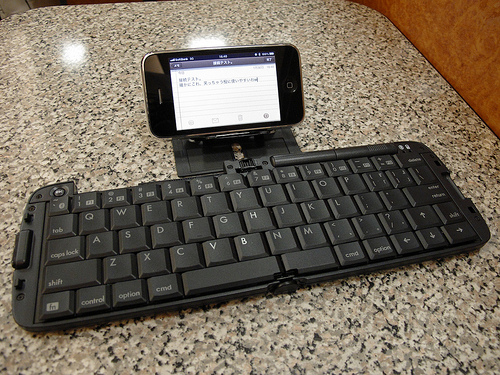
 iPhones are undoubtedly useful productivity tools, but unfortunately, they are limited by having a small touch screen as the only input option. A great way to get more out of your iPhone, is to use a Bluetooth keyboard to control it. Using a Bluetooth keyboard, you can type as quickly as you could on a PC and even control your phone remotely.
Share Files

iPhone Share Files

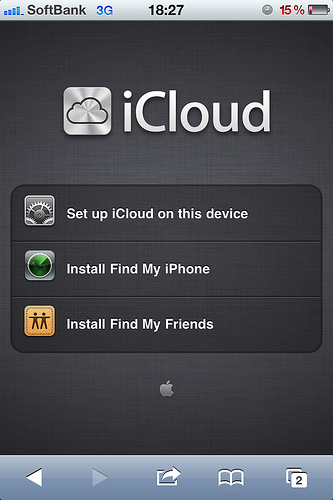
iPhones come with a built in cloud service called iCloud.  iCloud allows you to drag and drop files into a shared folder which all of your devices can access. This way, you can edit a file and then share it with your main computer within instances and with no need to use any wires. Drop Box offers
a similar option.Tethering

iPhone Tethering

Only recently have iPhones caught up to Android in this respect, and it's a good thing they did as this is one of THE most useful functions of modern smartphones. Basically by enabling wireless tethering, you can provide a
Wi-Fi internet connection that a computer or even another phone can connect to; meaning that you always have access to the web wherever you go.Jailbreaking

iPhone Jailbreak

If you haven't considered jailbreaking your iPhone yet, then perhaps it's time to. This way you will be able to run a vast number of apps that you currently won't be able to and that will allow you to get a LOT more out of your phone. This includes the use of emulators, the ability to customize the appearance and even the option to use a different keyboard or a different web browser. It's not illegal and it's easily reversible. The only thing against it is that it voids your warranty. So, use it only if your phone is out of its warranty period.
HDMI Cable

Connect iPhone to TV

There are HDMI cables available for iPhone that allow you to
connect your smartphone to a HD TV; meaning that you can watch YouTube or play apps on the big screen. Combine this with a wireless keyboard or controller and you practically have a mini game console that you can carry anywhere with you.Computer Control

Control your computer with iPhone

Apps like
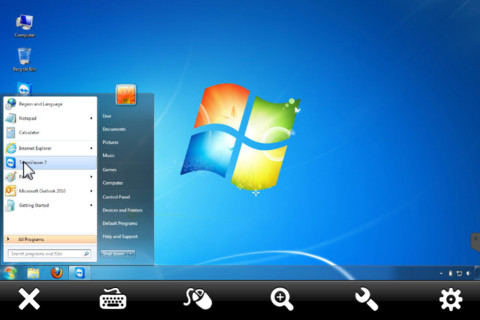
TeamViewer allow you to control your computer wherever you go; meaning that you can open and edit documents, stream movies and more. This is amazing for watching films while reclining on the sofa, or for quickly accessing your files when you're traveling.


If you like it please share.

Read More