
Sunday, 19 June 2016

Staying Safe On Your iPhone

  No comments
17:17

By now, it is certainly safe to say that Apple has gained a wider following than just the young, tech-savvy demographic that initially seemed to flock to Mac products. While Mac computers (and specifically the MacBook Pro) have steadily arisen in popularity, the brand’s move to household name is built largely on their fleet of iOS products, and specifically the iPhone. Apple boasts intuitive-yet-sophisticated software as at least one reason that users from a broad range of demographics are drawn to their products.
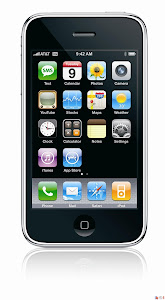
Stay Safe of iPhone

Most users will find the transition into using an iPhone fairly smooth and will have very few problems with the basic usability of their phone even without much research or practice. While this is definitely a good thing, many users tend to settle into a rut, using only the basic functions of the device and failing to capitalize on additional features. In many cases, this simply means less entertainment so it might not be a big concern. In others, however, it might mean less
security and that should definitely be a concern. The iPhone has several security features enabled by default but users (particularly those new to iOS products) should at least be aware of a few additional safety features.

1. Auto-lock and Passcode

The iPhone is set by default to Auto-Lock after 1 minute without use but this setting can be disabled (Settings > General > Auto-Lock) or set to auto-lock after 2, 3, 4 or 5 minutes. When combined with the Passcode Lock setting, Auto-lock is a simple, yet effective, safety feature. When Passcode Lock is activated (Settings > General > Passcode Lock), it requires that a 4-digit code be entered before the phone is unlocked. Enabling both of these settings will prevent unauthorized activity on your phone (be it your 2 year old son or a stranger that has found your lost phone).

2. Wi-Fi Settings

One of the big advantages of an iPhone (or any Smartphone) is Wi-Fi support. This advantage can also be a potential risk because it opens up the possibility that hackers access your phone data via the web. One simple precaution can be taken by enabling the Ask to Join Networks feature (Settings > Wi-Fi > Ask to Join Networks). When this feature is enabled, an alert will pop up before automatically joining any new or unknown Wi-Fi network. This feature gives you the ability to only join networks you trust.

3. Device Usage Restrictions

The iPhone now allows users to enable specific usage restrictions (Settings > General > Restrictions). This setting allows you to block the use of certain features such as Safari, YouTube, or the Camera. It also allows you to block music and video content based on various rating systems. Many users with children take advantage of these settings but it is also a good way to avoid viewing or hearing explicit content unintentionally.

If you like it please share.

Read More

How to Secure a Wireless Wi-Fi Network

  No comments
17:15

With the world going wireless in every sphere of technology, the question of security has often been raised. The same is true for wireless internet networks or Wi-Fi networks with hackers and Wi-Fi intruders always looking for ways to gain access to unsecured networks. There are several reasons why you might want to protect your Wi-Fi network. Prominent among them include better privacy, reduced internet bills and faster internet speeds.This post contains few simple techniques you can use to make sure that your wireless network is as secure as it possible can be.

Protect your Wireless Internet Network

1) Encrypt your Wi-Fi Network: When you use a Wi-Fi network for accessing the internet, every piece of data you send and receive over the air can be easily snooped by anyone with the right set of tools. Packet sniffers can be used by even the most novice of users to sniff your data. This means that a hacker can not only see which websites are you accessing but also get the login details of your personal and professional accounts.

Encryption basically involves scrambling the data that is transmitted and received by you while using a wireless network. This means that even if a hacker intercepts your data transmission, (s)he will not be able to exploit the information contained within it.

Protect WiFi Internet Network

There are two encryption standards available that you can use:
WEP (Wired Equivalent Privacy) and WPA (Wireless Protected Access). WEP is the older standard of encryption and can now be bypassed in a matter of minutes. WPA is relatively newer but it still has security holes. AirCrack and coWPAtty are two free tools that allow anyone to easily crack WEP and WPA encryption using bruteforce technique. WPA2 is the latest standard and is what you must use if you want the highest level of protection for your wireless network. The encryption keys used change each time a device accesses the network making WPA more difficult to hack.

The encryption used by all devices in the network must be the same for the network to work properly. Your network
will only be as secure as its least secure device. Make sure all devices you use support WPA2 encryption. Use a strong encryption key. Make sure that it is longer than 10 characters and contains a mixture of capital and small letters, numbers and symbols. Do not use common words and stuff that people can guess about you as your password.

2)
Replace default passwords on your router with strong passwords: The biggest mistake most wireless internet users make is not changing default passwords on their routers. Hackers utilize public databases that contain default passwords and usernames from virtually every manufacturer. This enables them to change the security settings of your router according to their needs. Using a strong password for your router ensures that hackers and miscreants cannot change your network's security settings. To change the password on your router, visit Administration settings on your router's settings page. Also, do not store passwords in browsers as they can be easily made visible.

3)
Change default SSID
Your network's SSID or Service Set Identifier is the name of your wireless network. Usually, the SSID is the name of the router's manufacturer along with the model number of the router. Changing it to not display this information prevents you from giving additional information about your router to prospective hackers.

4)
Do not broadcast your SSID
Hiding SSID prevents unsophisticated and inexperienced hackers and wifi intruders from determining that your network exists. Hiding your SSID is relatively easy and the option to do so is usually under basic wireless settings on your router's settings page. However, it is important to note that some devices, including those running newer versions of Windows, will show every network even if they cannot identify its name. Moreover, your network will still contain the SSID in data packets making unmasking ridiculously easy with tools like inSSIDer, Kismet and Commview for WiFi.

5)
Use scary names to discourage Wi-Fi theft: If your wireless network has a name like C:\virus.exe, most people who might otherwise access your network will not for the fear of getting their devices infected. You can use your creativity to find more dangerous names for your wireless network.

6)
See Connected Devices List: Almost every new router will have a page which displays the list of every device that is connected to the network. You should check this page at regular intervals to see that unknown devices are not leeching your network. When you see an unknown device, you can be certain that someone has breached your network. You can try AirSnare, a free utility which scans your network for unexpected MAC addresses and also looks into DHCP requests.
Secure Wireless Network

7)
Turn off Guest networking: While most routers will have guest networking disabled by default, it always pays to see that you may not have accidentally enabled it. Guest networking allows others to access your network.

8)
Enable MAC address based filtering: Media Access Control or MAC address identifies each device connected to your network. MAC address is an alphanumeric key separated by colons. Enabling MAC address based filtering allows only devices having particular MAC addresses to access your network. You need to enter the MAC address of every device you wish to allow to connect to your network on your router's settings page. This prevents unknown devices from connecting to your network even if they know your password. To find the MAC address of your computer, open command prompt and execute “ipconfig /all” without quotes.

While it may prevent inexperienced users from getting access to your network, experienced hackers and advanced users can use a wireless network analyzer like
Nmap and then change the MAC address of his computer with another free tool MAC Shift.

9)
Keep your firmware up to date: Router vendors regularly release firmware updates and post them on their websites. You should occasionally check the manufacturer's website to see if a new firmware update has been released. Newer routers will automatically inform you when new firmware is available.

10)
Reduce wireless signal range: If you reduce the range of your wireless network, common sense tells that it will prevent hackers located at a distance from detecting your network. This has the advantage that if hackers do not know that a wireless network exists, they will not try to break into it. You can place your router at places which would block the Wi-Fi signals. While this technique is advantageous, a hacker keen on hacking into your network will just have to use a larger antenna to pick up your router's signals. Moreover, reducing the range of your wireless network might cause troubles for genuine users.

11)
When not using your internet network, turn it off: This is self explanatory. If you are not using your network, turning it off saves you from giving extra time to hackers to try and hack into your wireless network. While it may be impractical to turn off your network every time you are not using it, it still is advisable to do so during extended periods of non use.

If you follow all these techniques, your Wi-Fi network will be a lot more protected and hackers will have a tough time breaking into it.


If you like it please share.
Read More

iPhone Tips and Tricks

  No comments
17:14


Whether you are a new user or a seasoned user of Apple’s iPhone, you're most likely not making use of your smartphone to the absolute maximum. With these simple tips and tricks, you won’t learn everything about your iPhone, but you will definitely become a more proficient user.


iPhone Tips & Tricks

You can take a screenshot.
From saving content you view on your mobile browser to taking quick snaps of funny texts, taking a screenshot can be incredibly useful in a lot of ways. Taking a quick snap of whatever is on your iPhone’s display is super quick and easy; simply press the home key at the bottom of your phone at the same time as the button at the top of the device. Your screenshot will be saved to your camera roll.

Have Fun With Siri
If you add the address for people in your contact list and then ask Siri to take you to them, she will give you directions to their house. Telling Siri about your relations will cause her to ask to remember them. If you agree, she will remember. Then, whenever you ask her to name your relation, she will. e.g. Telling Siri that Rebecca is my sister will make her tell that Rebecca is your sister whenever you ask the question, "Who is my sister?"

Instant Scrolling
If you have scrolled down a really long web page, then just tap the bar on the top of your screen to immediately be taken to the top of it.

Automatic Backup
To automatically backup your iPhone on iCloud, go to Settings > iCloud > Storage & Backup and turn on iCloud Backup. This will automatically backup your phone's critical data without the need to synchronize it again and again.

Caps Lock
To type in capital letters, just enable Caps Lock on your phone by double tapping the Shift arrow.

Extend Battery Life
If you feel that your iPhone's battery performance is below par, you can increase it by disabling 3G, Bluetooth and push notifications. Just go to Settings> General> Network to do this.

Use the Home Button
Pressing the Home button once will take you to your Main Screen. Pressing it twice will take you to Spotlight Search which you can use to search everything on your phone.

Control what appears in Spotlight search
To control what appears in Spotlight search, go to Settings> General> Spotlight Search and select according to your needs.

Block Inappropriate Content
To do so, go to Settings> General> Restrictions and tap Enable Restrictions. This will allow you to add a pass code and select which apps you want to make accessible.

Download Apps and Music on all your iProducts
If you have many Apple devices and don't want to download the same apps or music on them again and again, you can enable automatic downloads for apps, music and iBooks by going to Settings> Store.

Send Read Receipts in iMessage
You can let others know when you have read their text messages by enabling "Send Receipts" from Settings> Messages.

Close Programs Running in the Background
Just double tap the Home Button, then hold your finger down on the app you would like to close. Then, once it starts shaking, tap the red minus icon to close. This will be of huge help if you find that your phone is running slowly.

You can be a master of autocorrect.
If you are typing a note or an e-mail, you may have had some issues with the iPhone’s autocorrect or autocomplete features. Sometimes the results from this feature are helpful and right on, but other times they are anything but helpful. If you pay attention when you type, you don’t have to be at the mercy of your iPhone. A little textbox will pop up and recommend a spelling or a completed word; to accept it press the space key. If you don’t want to accept the word, tap the tiny “x” that appears next to it. This can help you avoid some faux pas when texting.

Create your own dictionary.
Speaking of autocorrect and autocomplete, you can create your own dictionary. When you enter a custom dictionary, your phone will autocorrect and autocomplete the things you type by inserting words you actually use. To do this, go to “Settings” and then “General.” In this menu, scroll down to the shortcuts area and tap “Add New Shortcut.” Not only will this let you enter in custom dictionary words, but you can also enter in shortcuts so that your abbreviations will end up inputting complete words in texts and emails.

Have custom ring tones for less money.
Your iPhone comes with many ringtones and message tones, but these are the same sounds that millions of other iPhone users are utilizing. If you want something unique, you may be tempted to shell out big bucks for custom ring tones. If you like to assign special ringtones to certain people or groups, this may cost you a lot. So, in order to get ringtones without breaking the bank (and taking away your app budget), you should look at applications that allow you to make ringtones out of songs you already have on your phone. Some of these cost money and should only be bought if you want to create a lot of ringtones. If you are only looking to turn out a couple of tones, you can even get a free version of these popular apps.

Block your number from other people’s caller ID.
Blocking your number can be helpful for any number of reasons. Maybe you don’t want an ex that you need to call to have your new number, or possibly you are using your personal number for business, but you don’t want professional contacts to have your personal digits. You can block your number easily from the “Settings” menu. There, you should go to the “phone” area and select the “Show My Caller ID” option; there you need to slide over to “no.” To switch it back on, follow the same steps and slide over to “yes.”

Multitask like nobodies’ business.
One of the reasons many preferred Android to the iPhone was because it offered better multitasking. As the iOS developed, multitasking has improved. When you need to quickly switch from one app to another, you simply have to press the home button to leave an app. Then double click the home key again to reveal your most recently used apps at the bottom of the screen. A quick swipe of the finger will allow you to flick through all recently used applications, allowing you to quickly hop from one application to another; thus making you more productive.


If you like it please share.
Read More

Google Tricks, Easter Eggs & Secrets

  No comments
05:52

Google's engineers love to hide some pretty cool tricks at the most unexpected places. Add to that Google's policy of giving 20% of working time to its engineers to do what they want, and you have a search engine filled with lots of entertaining Easter eggs and tricks.

Sadly, most of these tricks are still a secret, but every now and then, Google employees leak these cool insider pranks and the whole world gets to know about them. Here, I have created a list of all such known Google tricks and Easter eggs that are still "working."

Google Tricks

Google in 1998
Search Google for "Google in 1998" and you will be taken to the past to a search results page that shows how Google looked in 1998.Kerning
Kerning means adjusting the spacing between characters. So, how would you expect Google to describe it? Literally, off course. When you search Google for Kerning, the spacing of the word Kerning is changed as compared to that of other words. This only works with personalized results disabled.Conway's Game Of Life
Conway's Game Of Life is a game that indicates how cellular life evolves based on the initial configuration. If you search Google for Conway's Game of Life, you will get a results page with the game running in the background.Jason Isaacs
Just search for Jason Isaacs and Google will return a page saying Hello to him. This only works on Google UK. This is a reference to Kermode and Mayo's Film reviews which greets Jason with hello every week.Bacon Number {Actor Name}
Kevin Bacon is a famous hollywood actor who was quoted as saying that he has worked with everybody in hollywood or somebody who has worked with them in 1994. This led to many websites being launched about his claim in 2007. Bacon seeing this immense response launched a charitable website called Six Degrees, which is based on a theory that everyone in hollywood has worked with Kevin Bacon through a chain of six acquaintances or less. An actor gets as many degrees as he is distant from Kevin Bacon's movies in terms of people in the chain of acquaintances.

Google too has now involved Six Degrees of Bacon in its search results. For example, searching Google for Bacon Number Johnny Depp gives Depp's Bacon number to be 2.
Google knows how to celebrate the holidays
Searching Google for a holiday will make Google return a page decorated with items representing that holiday. For example, searching Google for Christmas returns a page decorated with Christmas lights. This also works for Kwanzaa, Hanukkah, Halloween and Festivus. These Easter Eggs based on a festival are only activated when that festival is near.Zerg Rush
Search Google for Zerg Rush and you will see the O's of Google attacking the search results page. They will attacking every result one by one. There is a health bar which indicates how injured a search result is. You can also kill these O's by clicking on them. They also have health bars which indicates their health. You get points on the basis of how many O's you kill. The aim of this game is to beat as many O's as possible.
Zerg Rush Google Easter Egg

Askew or Tilt
Ever had the chance of searching Google for Askew or Tilt? If you have, then you already know what comes up. If you haven't, do it now and you will see the search results page literally tilt to give you a better idea of what these words mean. This will work only if you use latest browsers which support HTML5 and CSS3. So, Internet Explorer users, use Firefox, Google Chrome or Safari for a while to use this.Do a barrel roll
Google Tricks & Easter Eggs
'Do a barrel roll' in its true sense means to do a 360 degree spin. Google takes practical demonstrations way too seriously for this one and literally spins the search results page to give you a clearer idea of the meaning of this phrase. Don't believe me? Go search Google for Do a barrel roll now and see your world turn around.

This Easter egg is apparently a tribute to Star Fox, a video game series developed by Nintendo, because searching Google for
Z or R Twice also does the barrel roll, just like in Star Fox. Many bloggers interpreted a lot of different things from this, but Google clarified that this fun trick was created by a Google Engineer solely for the purpose of entertaining users along with showing the power of new HTML5 and CSS3 technologies. Like the previous Easter egg, this will only work in modern browsers. Binary, Octal and Hexadecimal Number systems
Another one of those literal Google Easter eggs. If you search Google for "Binary", "Octal" or "Hexadecimal" (without quotes) with Search Plus Your World disabled, Google will show the number of results in the same number system. For example, searching Google for hexadecimal will return the number of results like in the image below.
Octal, Binary & Hexadecimal

Recursion
The "Did you mean?" feature of Google often helps many users to get to the right results when they type something different from what they intended to search. If you search Google for recursion, the same feature takes you to an endless loop of clicks all linking to the same results page thereby completing recursion, which occurs when something calls itself. Seriously geeky.
Recursion Google Easter egg

Anagram
Another one of those "Did you mean?" Easter eggs. Search Google for Anagram and Google will instantly ask whether you meant "Nag A Ram" which is one of the anagrams of the word "anagram." Google really shows their word-playing skills with this one.

Asking Google to
define Anagram makes Google ask if you meant nerd fame again.ASCII Art
Are you a fan of ASCII art? Google surely is. Search Google for ASCII art and Google will greet you with a search results page having an ASCII version of the Google logo at the place where normal logo should have been. This Easter egg does not work anymore. When it did work, it looked like the image given below.
ASCII art Google Easter Egg

Google Calculator Easter Eggs: The loneliest number
Google Secrets
Do you know which is the loneliest number? Ask Google Calculator. Search Google for the loneliest number and the in-search Google Calculator will give one as the answer, which apparently is a tribute to the Harry Nilsson's song "One."Once in a Blue Moon
Google Tricks Easter Eggs
Ever wondered how much is 'once in a blue moon'? You must have heard this phrase often but Google calculator will give you the exact value of this phrase and surprisingly, it denotes frequency rather than time. Go search Google for this to get "1.16699016 × 10⁻⁸ hertz" as the answer.The number of horns on a unicorn
Want to know the number of horns on a unicorn? Google calculator can help. Searching Google for the number of horns on a unicorn will give 1 as the answer.Answer to the Ultimate Question of Life, the universe and everything
Google Easter eggs
Google is omniscient. Even the "answer to the ultimate question of life, the universe and everything" is known to Google. Just search Google for the above phrase and Google calculator will give you an answer. What are you waiting for? Just go to Google and find the true meaning of life.

[Pause to give you the time to search]

Surprised by the answer (42)? This is a reference to The Hitchhiker's Guide to the Galaxy, a popular novel based on a radio show (by the same name) of the late seventies. Google engineers surprised you with these tricks, didn't they?

Read More

6 Uncommon But Highly Useful iPhone Features

  No comments
05:22

An iPhone is a brilliant device and anyone who has one knows that it can make almost everything you do easier; whether that be looking for a nearby bar or sending e-mails to clients and colleagues. However, while you're probably familiar with many of the very useful aspects of your phone, there is a good chance that there are still things that you haven't made full use of yet. There are probably elements of your phone that you aren't using to the fullest. Here we will look at a few things to do with your iPhone that you perhaps weren't aware that you could do.
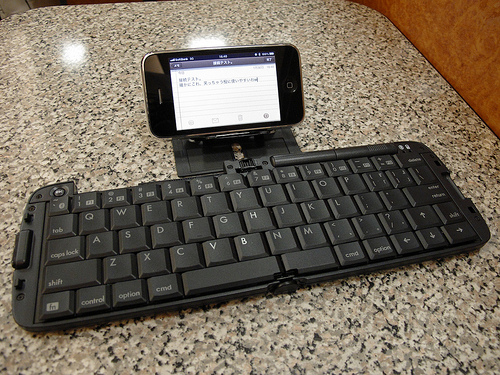
Use a Keyboard

iPhone Keyboard

 iPhones are undoubtedly useful productivity tools, but unfortunately, they are limited by having a small touch screen as the only input option. A great way to get more out of your iPhone, is to use a Bluetooth keyboard to control it. Using a Bluetooth keyboard, you can type as quickly as you could on a PC and even control your phone remotely.
Share Files

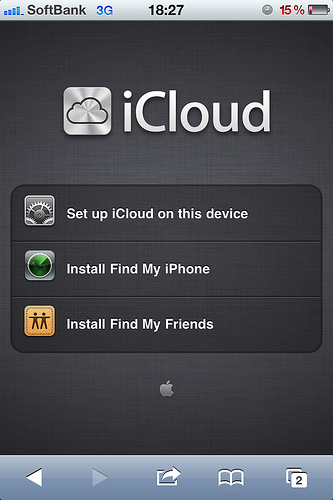
iPhone Share Files

iPhones come with a built in cloud service called iCloud.  iCloud allows you to drag and drop files into a shared folder which all of your devices can access. This way, you can edit a file and then share it with your main computer within instances and with no need to use any wires. Drop Box offers
a similar option.Tethering

iPhone Tethering

Only recently have iPhones caught up to Android in this respect, and it's a good thing they did as this is one of THE most useful functions of modern smartphones. Basically by enabling wireless tethering, you can provide a
Wi-Fi internet connection that a computer or even another phone can connect to; meaning that you always have access to the web wherever you go.Jailbreaking

iPhone Jailbreak

If you haven't considered jailbreaking your iPhone yet, then perhaps it's time to. This way you will be able to run a vast number of apps that you currently won't be able to and that will allow you to get a LOT more out of your phone. This includes the use of emulators, the ability to customize the appearance and even the option to use a different keyboard or a different web browser. It's not illegal and it's easily reversible. The only thing against it is that it voids your warranty. So, use it only if your phone is out of its warranty period.
HDMI Cable

Connect iPhone to TV

There are HDMI cables available for iPhone that allow you to
connect your smartphone to a HD TV; meaning that you can watch YouTube or play apps on the big screen. Combine this with a wireless keyboard or controller and you practically have a mini game console that you can carry anywhere with you.Computer Control

Control your computer with iPhone

Apps like
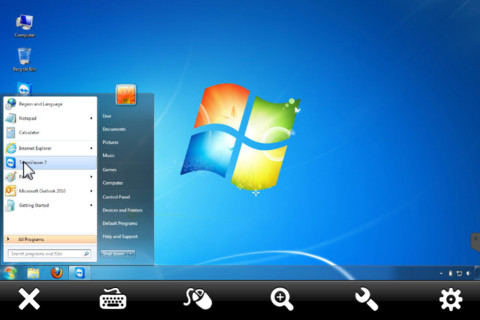
TeamViewer allow you to control your computer wherever you go; meaning that you can open and edit documents, stream movies and more. This is amazing for watching films while reclining on the sofa, or for quickly accessing your files when you're traveling.


If you like it please share.

Read More

Enable Task Manager disabled by Administrator or Virus in Windows

  No comments
02:55

Windows Task Manager is used to view details about processes running on your computer. Since it can be used to terminate programs that are misbehaving or are viruses disguised in the form of harmless programs, most spyware and viruses disable it to prevent themselves from being closed through it. Some administrators also disable Task Manager to prevent users from closing important security programs like antiviruses and anti-malwares.

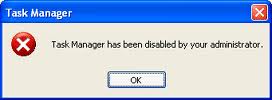
In such situations, running the Task Manager will give the "Task Manager has been disabled by Administrator" error. However, there are some techniques you can use to re-enable task manager and close those harmful programs manually. This article contains few such simple techniques you can use to regain access to Task Managing privileges.

enable task manager disabled by administrator

Enable Task Manager from Registry in Windows 8, 7, XP or Vista

Registry Editor is an inbuilt Windows tool that is used to modify registry keys which tell Windows how it should work. A simple registry modification can be used to bypass the Task Manager block. To do so, just follow the steps:-
  1. Click on Start. Go to Run. If you use Windows 8, Windows 7 or Windows Vista, go to Search.
  2. Type regedit and press Enter. Registry Editor will start. If Registry Editor is also disabled, you will first need to enable registry editing.
  3. Through the left hand navigation pane, navigate to HKEY_CURRENT_USER\Software\Microsoft\ Windows\ Current Version\Policies\System. If the System key is not there, you will need to create it.
  4. In the work area, locate "DisableTaskMgr". If this value is not there, you will need to create a new DWORD value called DisableTaskMgr. Double click on it. A window will pop up.
  5. Enter its value data as 0 and press OK.
  6. Close Registry Editor. If Task Manager is still disabled, restart your computer.

Enable Task Manager from the Group Policy Editor (Gpedit.msc)

enable task manager
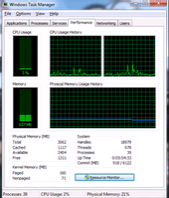
Windows Task Manager in Windows 7
Group Policy Editor is a feature in Windows which is used to edit local policy settings. It can also be used to enable Task Manager. To do so, just follow the steps given below:-
  1. Open Start Menu. Windows XP users click on Run. Windows 8.1, Windows 8, Windows 7 and Vista users, go to Search.
  2. Type gpedit.msc and press Enter. Group Policy Editor Window will show up.
  3. From the navigational pane at the left hand side, go to: User Configuration>Administrative Templates>System>Ctrl+Alt+Del Options.
  4. In the work area, double click on "Remove Task Manager" and set its value to Disabled or Not Configured.
  5. Restart your Computer or Log Off and Log back On to apply the changes.
Group Policy Editor is not available on home editions of Windows.

Enable Task Manager by Running a CMD Command

Command Prompt can also be used to directly enable Task Manager.
  1. Open Notepad.
  2. Copy the code given below and paste it.
  3. REG add HKCU\Software\Microsoft\Windows\CurrentVersion\Policies\System  /v  DisableTaskMgr  /t REG_DWORD  /d /0 /f
  4. Save the File as TaskManager.bat.
  5. Run TaskManager.bat as Administrator if you use Windows 8, Windows 7 or Windows Vista. In Windows XP, simply open the file. A command prompt window will flash for a second and then disappear indicating successful execution. After running the batch file, you will be able to again use Task Manager. If Task Manager is still not available, restart your computer.

Create a Registry(.reg) file for enabling Task Manager

If you are unfamiliar with manually editing the Registry, you can create a Registry file which will automatically modify the Registry Key to re-enable Task Managing. To create one such file:-
  1. Open Notepad or any other text editor.
  2. Copy the code given below and paste it as it is in it.
  3. Windows Registry Editor Version 5.00 [HKEY_CURRENT_USER\Software\Microsoft\Windows\CurrentVersion\Policies\System] “DisableTaskMgr” =dword:00000000
  4. Save the file as Enable Task Manager.reg or *.reg.
  5. Open the file by double clicking on it.
  6. Registry Editor will ask you for confirmation. In the confirmation Window, click Yes.
  7. Task Manager would immediately be accessible. If it is not, restart your computer.
The techniques mentioned in this article work on Windows 8.1, Windows 8, Windows 7, Windows 10.

If you like it please share.

Read More

How hackers hack Facebook Account & How to stop them?

  No comments
00:46

Facebook is, undoubtedly, the most popular social networking website with more than 500 million active users. Due to its popularity, many hackers (or should I say crackers?) are actively involved in hacking Facebook accounts of unsuspecting users. This article outlines the many strategies that such hackers use to gain access to Facebook accounts of hundreds of users each day and how you can stop them from hacking your account.

hack facebook account
Facebook is one of the prime target of hackers!

Email Address Hack

I have always been puzzled by Facebook's leniency in this matter. All a hacker needs to do is know your name and he will be conveniently shown your email address at your profile. How easily a hacker can then hack your Facebook account (and everything else associated with that email id) if he 'guesses' your password (if you use a weak password) or answers your security question! This is something I hope Facebook improves on quickly. Until Facebook does so, here are some tricks you can use to protect yourself from this vulnerability.How to safeguard your Email Address?
Just follow these steps:-
  1. Hide your Email Address from everyone by going to Edit Profile>Contact Information>Clicking on the icon beside your email address> checking 'Only Me'.
  2. Change your primary email address to a one that is only known to you by going to Account Settings>Email> and changing your primary email to the new one (known only to you) and removing your previous email address.
  3. For additional security, when in Account Settings, check 'Secure browsing' and 'Send me an email when a new computer or mobile device logs into this account' and click Save.

hack facebook
A hacker at work!

Phishing

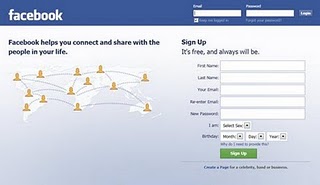
Phishing is one of the easiest ways to trick users into giving out their login credentials. All a hacker does is setup a webpage similar in design to that of the Facebook homepage, attach a server sided script to track the username and password entered and store it in a log. Sending people emails stating that someone tagged a photo of them on Facebook in the same format as Facebook and giving a link below to the phishing website further reduces the chances of it being detected as a fake. Sometimes, spam Facebook apps, like those promising to tell who viewed your Facebook profile, automatically post links to phishing websites. A new trend amongst phishers is creating Facebook look-a-like widgets for stealing user's login credentials.How to prevent yourself from being phished?
At all costs, avoid clicking on suspicious links. Moreover, always check the URL in the address bar before signing in. Avoid logging in through various "Facebook widgets" offered by websites and blogs. Instead, use Facebook's homepage to sign in. Always try to use Safe Search while searching. If you do manage to get phished, report the website so that others may get a warning before visiting it.
hack facebook password

Keylogging through Keyloggers

Keylogger is a type of computer virus that tracks key strokes. Keyloggers can be installed remotely on a computer system by a cracker to record all the activity that is going on the victim's computer. Keylogging gets more easy if the hacker has physical access to the victim's computer.How to stop keyloggers?
Install a good antivirus and update it frequently. Do not click on suspicious links and avoid downloading illegal software. Also, avoid installing free toolbars and other such spam software. Always scan third-person's flash and pen drives before using them on your computer.

Some more basic tips can be found here:
PC Security tips to make computer secure

Social Engineering

Social engineering involves using any trick to fool the user into making himself vulnerable to exploits. This could involve anything from sending spoof emails, pretending to be from Facebook, telling you to change your password to 12345678 to a hacker maliciously getting out the answer to your security question in a friendly chat or discussion.How to prevent yourself from being socially engineered?
Stay aware during chats and discussions. Use a tough security question, preferably one whose answer you would never disclose to anyone. Moreover, Facebook, or any other company for that matter, will never ask you to change your password to 12345678 or do something as silly as asking you to send out your login details to prove that you are an active user. Always think before taking actions and your e-life on Facebook will be safe from hackers looking to hack Facebook accounts.

If you like it please share.

Read More